11. Odin1 Relocalization Map Acquisition Guide
📄 Download English PDF: Odin1 Relocalization Map Acquisition Guide
11.1 Overview
Odin1 supports relocalization and is integrated with the MANIFOLD handheld scanner data pipeline. Three workflows are currently provided:
- Option 1: Capture
olxdata with Odin, process it with Mindcloud, and use the Export Map function to export abinfile for Odin relocalization. - Option 2: Capture
lxdata with the MANIFOLD handheld scanner (e.g. Q9000), process it with Mindcloud, and use the Export Map function to export abinfile for Odin relocalization. - Option 3: Generate a
binfile directly with Odin in SLAM mode for Odin relocalization.
11.2 How to Use
11.2.1 Option 1: Capture olx data with Odin and export the map
Record olx files with Odin (requires Odin firmware ≥ 0.10.0 and driver ≥ 0.9.0):
- On Ubuntu, set
recorddata: 1in the driver and setmap_modeto 0. - On Windows, run OdinViewer to record data.
- Process the
olxfile with Mindcloud, then click Export Map in post-processing to obtain the relocalizationbinfile.
11.2.2 Option 2: Capture lx data with the MANIFOLD handheld scanner and export the map
(Skip this option if you do not have a MANIFOLD handheld scanner.)
Record lx files with the handheld scanner:
- Connect the Q9000 to your phone and use Mindcloud Go to scan.
- After scanning, export the project file to your local machine.
- Process the
lxfile with Mindcloud, then click Export Map in post-processing to obtain the relocalizationbinfile.
11.2.3 Option 3: Generate a bin file with Odin SLAM mode
Record SLAM data with Odin:
- On Ubuntu, set
recorddata: 0in the driver and setmap modeto 1. - After recording, do not kill the driver process. Instead, open another terminal, go to
/catkin_ws/src/odin_ros_driver, and run./set_param.sh save_map 1. Wait until the driver terminal indicates that the map has been saved and abinfile has appeared in the corresponding folder before stopping. - Set
map mode: 2to switch to relocalization mode. - Re-run the driver to start relocalization.
11.3 Visualizing the Relocalization Map
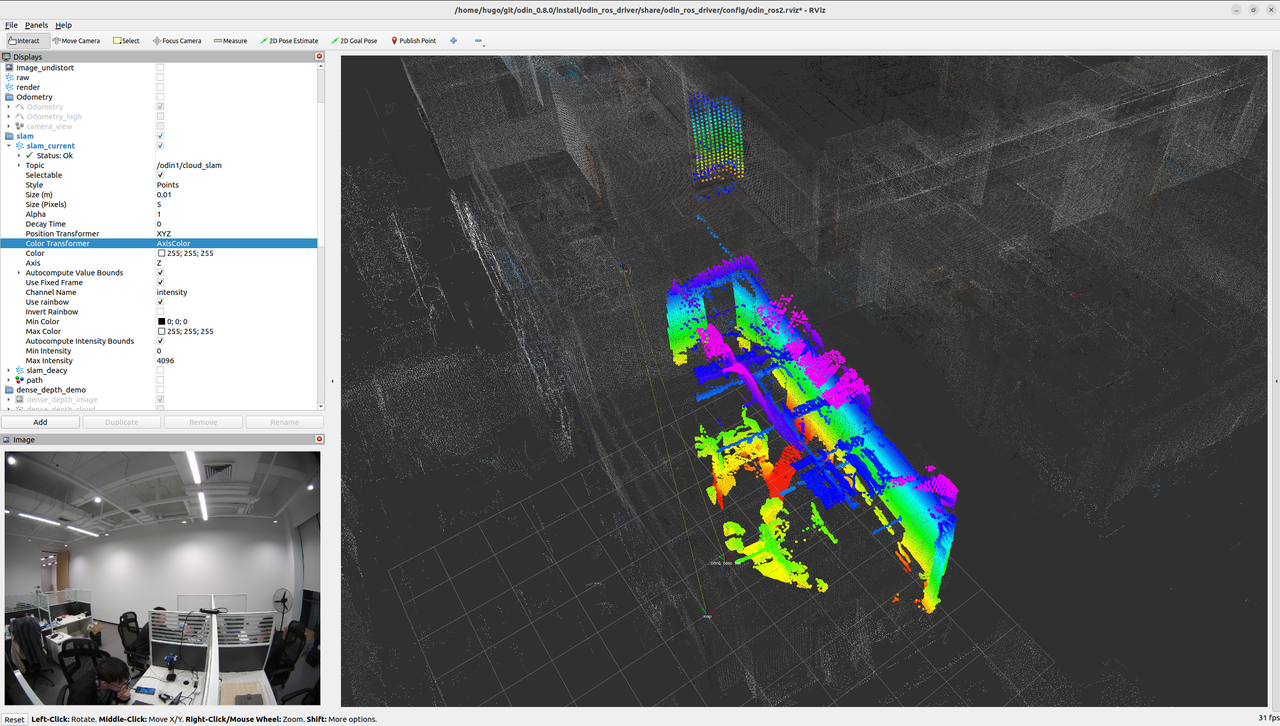
Once the olx file is imported into Mindcloud, you can not only export the relocalization map but also click Save in the upper-left corner to save a point-cloud map in pcd format. This map can be displayed in RViz; you need to publish it as a ROS topic. You can downsample the pcd and write a custom publisher node — see the following Python sample:
The final result looks like this:
11.4 Convert the relocalization bin directly to PLY with map_to_ply (no Mindcloud required)
If you just want to quickly visualize an existing relocalization map (loop_map.bin) and would rather not go through the full Mindcloud post-processing pipeline again, you can use the map_to_ply tool we provide to convert the bin file directly into a PLY point cloud, and then open it with common tools such as CloudCompare, MeshLab, or Open3D.
This tool works with any
loop_map.bin(MAPV0001 format) produced by options 11.2.1 / 11.2.2 / 11.2.3.
11.4.1 Download
Pick the build that matches the CPU architecture of the machine where you’ll run the tool:
| File | Target platform |
|---|---|
| map_to_ply_amd64 | x86_64 (Intel / AMD) |
| map_to_ply_arm64 | ARM aarch64 (Jetson / Kunpeng, etc.) |
Built on Ubuntu 20.04 (glibc 2.31); compatible with Ubuntu 20.04 / 22.04 / 24.04.
11.4.2 Usage
After downloading, make it executable:
chmod +x map_to_ply_amd64 # or map_to_ply_arm64
Basic usage:
./map_to_ply_amd64 <input.bin> [output.ply]
input.bin— the inputloop_map.binoutput.ply— the output PLY file (optional; defaults to the input name with a.plyextension)
Examples:
# Auto-name the output; produces loop_map.ply
./map_to_ply_amd64 loop_map.bin

# Specify the output name
./map_to_ply_amd64 loop_map.bin my_map.ply
11.4.3 Output
By default the tool writes a binary little-endian PLY containing each point’s x / y / z coordinates (float32). The resulting .ply can be opened directly in:
- CloudCompare (recommended — cross-platform, handles large clouds well)
- MeshLab
- Open3D (Python:
o3d.io.read_point_cloud("loop_map.ply")) - Blender (Import → PLY)